


IP Camera Viewer
3.8160.00 Reviews
App Specs
- Version
- 11.1.7
- Updated On
- License
- Free
- Downloads
- 1,000,000+
- Developer
- kapron-ap
- Categories
- House & Home
- Platform
- Android, iOS
Screenshots
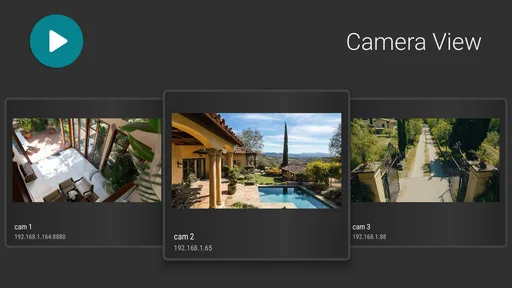
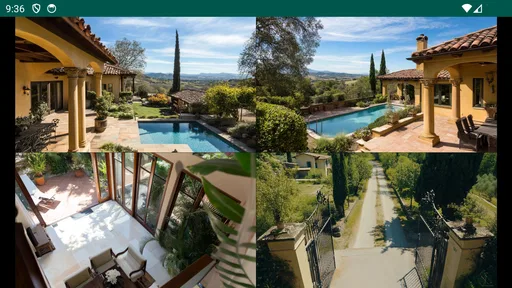
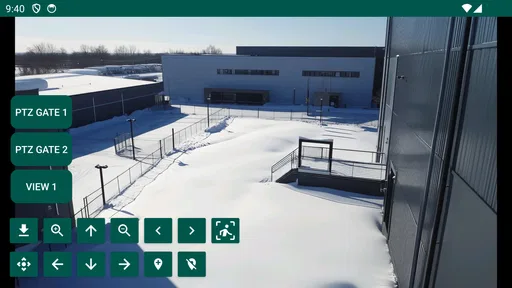
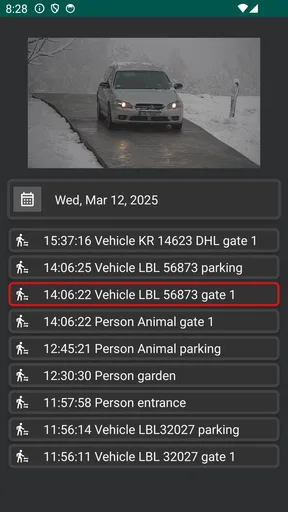
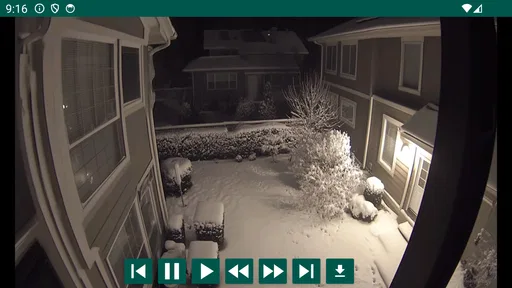
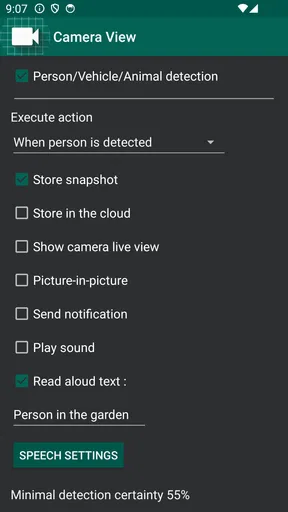
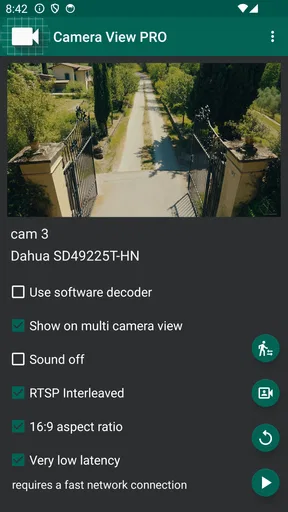
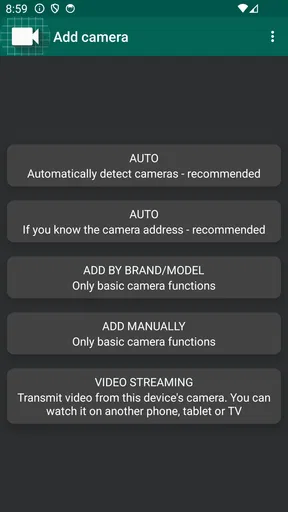
 Analysis by AppCompare
Before installing another home-monitoring app, I’d first ask what you need it to connect to. IP Camera Viewer is aimed at viewing and reviewing footage from Wi-Fi cameras or a home CCTV system, so its usefulness depends on having compatible camera equipment already in place. It is not a camera that turns a phone into a security system by itself, and it is not a substitute for choosing and installing the cameras.
That distinction makes the first decision easier: if your cameras are already set up and you want a mobile way to check them, this app is worth considering. If you are starting from scratch and expect a complete package with cameras, installation guidance, and a simple all-in-one setup, I would first look at the software recommended for the camera system you plan to buy.
What to expect from a camera viewer
IP Camera Viewer is a free House & Home app from kapron-ap. It has an average rating of 3.7 from around 7,600 ratings, and it has been installed over a million times. Those figures suggest a substantial audience, but they are not a guarantee that it will work with every camera or network arrangement. I’d treat compatibility and a successful connection as the real test, rather than assuming that a popular viewer will recognize any device automatically.
The app is rated for Everyone, and its current version is 10.6.7, with Android 5.0 as the minimum operating system. It also offers in-app purchases, priced from $1.99 to $15.99 per item, so “free” describes the initial download rather than a promise that every available option is included at no cost. I would check what is presented in the app before committing to a purchase, especially if you only need occasional live viewing.
Make the first setup less frustrating
Before opening the app, find the camera’s setup details and confirm that the camera itself is already reachable on your home network. If you have several cameras, start with one rather than trying to build a full monitoring layout immediately. That gives you a clearer way to tell whether a problem comes from the camera connection, its access details, or the app’s configuration.
Keep the camera’s model information and any connection credentials somewhere handy while you work. If the first attempt fails, avoid changing several settings at once: check the details you entered, then test the camera connection again. A small, deliberate setup is easier to troubleshoot than a rushed attempt to add every device at the same time. For remote viewing, remember that connecting on your home Wi-Fi and connecting from outside the home are different tasks; getting one working does not automatically prove the other is ready.
The first useful check
For a first success, aim for a simple live view of one camera while your phone is on the same network. Once you can see the area you care about, check whether the view is framed usefully: a camera pointed at a doorway may show that someone entered, while a wider room view may help you understand what happened around the same time. This practical check is more valuable than adding extra cameras before you know whether the first feed is dependable.
Worth Reading Before You Choose

Flipboard Shows What News Apps Must Do Beyond the Feed

Switching to Android Auto Means Rethinking Your Driving Routine

Google Calendar Makes a Crowded Week Easier to Manage

Ludo King Makes the Most of the Minutes Between Plans

Baby Panda World Brings Quick Play to Modern Phones, but Its Game Library Feels Busy

ESPN’s Live Game View Makes Following Close Games Easier
After that, try a short playback review if your camera system and app setup make recorded footage available. The useful question is not only whether a clip opens, but whether you can locate the moment you need without guesswork. If you are checking a delivery or looking in on a pet, note which camera view and time period answer the question. That habit can save time later, particularly when several feeds cover different parts of a home or office.
Getting Started with IP Camera Viewer
First things first, setting up the IP Camera Viewer is a breeze. You don’t need to be a tech wizard to get it going. Just download it from your app store, and you're pretty much set. The app supports a wide range of camera brands, so chances are, your camera's covered. I was pleasantly surprised at how quickly I got everything connected. Just a few taps, and I was watching live footage from my cameras. Easy peasy!
Interface and Usability
Now, let’s talk about the app’s interface. It’s clean and intuitive, which I love. No clutter, just straightforward controls. The main screen gives you a live view of all connected cameras. You can zoom in with a simple pinch, and switching between cameras is a swipe away. It's like having a control room in your pocket!
One feature that stood out to me was the ability to customize camera layouts. Whether you want a grid view or a single camera full-screen, it’s all up to you. And the app doesn’t lag, even when streaming high-quality video. That’s a big win in my book.
Features That Make It Stand Out
So, what makes the IP Camera Viewer special? Well, it’s got a ton of features that are super handy. Here’s a quick rundown:
- Motion Detection: Get alerts whenever something moves within your camera’s field of view. Great for peace of mind!
- PTZ Control: If your camera supports it, you can pan, tilt, and zoom directly from the app.
- Recording and Playback: Save video clips and play them back whenever you need to review something.
- Multi-Camera Support: Connect multiple cameras and view them all at once.
These features make it perfect for both home and office use. Whether you’re checking in on your pets or monitoring a business, this app’s got you covered.
What I Loved and What Could Be Better
Okay, now for the juicy bits. I really loved how reliable the app is. The connection is stable, and the video quality is top-notch. Plus, the notifications are prompt, so you won’t miss a thing.
However, nothing’s perfect, right? One thing I did notice is that setting up remote access can be a tad tricky if you’re not familiar with port forwarding. But hey, there’s plenty of online help to guide you through it, so don’t let that scare you off.
Choosing the right way to use it
For a realistic everyday routine, imagine leaving home in the morning and wanting to check whether a pet is settled or a delivery has been left inside. I would open the relevant camera rather than scan every feed, confirm the view is current, and then close the app once I had the answer. A viewer is most useful when it reduces uncertainty quickly; keeping a live stream open without a reason can drain attention and does not improve the camera’s placement or recording setup.
If you manage more than one area, give each camera a clear purpose before arranging a multi-camera screen. One view might cover an entrance, another a shared room. A grid can help with a quick overview, but a single-camera view is better when you need to inspect detail. That is a small workflow choice, yet it prevents a crowded display from feeling like more information than it actually is.
Motion alerts also need sensible expectations. Movement in a camera’s view is not automatically important, and alerts are only useful if the camera placement and notification settings suit the space. I would test the setup while at home and observe what kinds of ordinary movement trigger attention before relying on it while away. Avoid pointing cameras into private areas or treating an alert as proof of an emergency; use it as a prompt to check the live view or footage.
Where the trade-offs show up
The main comparison is between a general camera viewer and the companion app supplied for a particular camera or CCTV system. A dedicated companion app may make initial pairing and device-specific controls simpler, especially for someone who wants one guided setup. A separate viewer can be appealing when you already have equipment and want a phone-based place to watch it, but the experience depends on how well the camera and network work together. I would not switch away from a camera’s own app until I had tested the viewer with the actual devices I intend to use.
Remote access is another point where expectations matter. A feed that works at home may need additional network configuration before it can be reached from elsewhere, and port forwarding can be confusing if you have never adjusted router settings. If that is outside your comfort zone, stick to local viewing or use the camera maker’s simpler remote-access route rather than changing security settings blindly. Do not expose a camera to the internet just to make a quick test; understand the access method and protect the account and network first.
There is also a practical difference between live viewing and a complete security system. The app can be part of a monitoring routine, but the quality of that routine still rests on camera placement, a stable network, and whether recordings are available when needed. If your priority is professional monitoring, dependable alerts for a vulnerable person, or a system that continues to work through network and power problems, a phone viewer alone is not the right solution.
Who should give it a try
I can see this app suiting someone who already owns Wi-Fi cameras or a home CCTV setup and wants to check a feed from a phone without sitting at a dedicated monitor. It may also make sense for a small workspace where the owner wants a quick visual check of an entrance or shared area. People comfortable with basic device setup and willing to test their camera connection are likely to get more from it than someone expecting every camera to pair automatically.
I would skip it, at least as a first choice, if you have not bought a camera yet and want the easiest possible purchase-to-view experience. In that case, choose a camera system with a companion app that clearly fits your needs, then consider another viewer only if it solves a specific problem. I would also avoid relying on this as the sole safeguard for a property: a camera view can help you observe, but it cannot physically prevent entry or guarantee that a recording will be available.
One useful way to judge whether the free download is enough is to define your routine before paying for anything. Do you only need to check a live feed now and then, or do you expect to save and revisit clips regularly? Since in-app purchases range from $1.99 to $15.99 per item, check the available purchase details against that actual need. Don’t buy an option simply because it appears during setup; first confirm that your basic viewing workflow works and that the added option addresses a real limitation for you.
When something does not connect
If the camera does not appear or the feed fails, I would work through the problem in a calm order. First make sure the camera is powered and operating as expected, then confirm the phone and camera are using the intended network for a local test. Recheck the camera’s address and login details rather than repeatedly tapping connect. If live viewing works at home but not away, treat that as a remote-access issue instead of assuming the camera itself has stopped working.
For several cameras, test them one at a time and label them in a way that matches their real locations. That simple discipline helps when a feed is blank or pointed in the wrong direction. It also makes playback less confusing: knowing which camera covers a doorway is more useful than remembering a generic device name when you are trying to review an event.
If the image is hard to interpret, troubleshoot the physical view before blaming the app. Check whether the camera is aimed where you need it and whether the scene is too wide to show useful detail. Pinch zoom can help inspect a view, but it cannot recover detail the camera did not capture. For important areas, camera placement often matters more than adding extra controls to the phone.
My recommendation after trying it
My overall view is that IP Camera Viewer is a practical option for people who already have compatible equipment and want a straightforward way to check cameras and review footage. The mix of live viewing, layouts, camera controls, and playback can support a useful home or small-office routine, but those benefits are tied to a working camera and a setup that suits the network. The app’s 3.7 average rating is a reminder to approach compatibility as something to test, not assume.
Start small: connect one camera, verify a live view at home, and only then build out a larger layout or work on remote access. That path gives you a meaningful first result while keeping troubleshooting manageable. If it fits your devices and you are comfortable with the setup, the free download is a reasonable place to begin; if the connection process becomes more complicated than the monitoring you need, the camera maker’s own app may be the better everyday choice.
All in all, the IP Camera Viewer is a solid choice if you’re looking for a reliable way to monitor your space. It’s packed with features, easy to use, and doesn’t require a degree in rocket science to set up. Whether you’re at home or on the go, this app makes it easy to stay connected with what matters most.
So, if you’re in the market for a surveillance app, give IP Camera Viewer a shot. It’s a handy tool that just might become your new best friend in home security. Happy monitoring!
Pros
- Easy setup and user-friendly interface.
- Supports multiple camera brands.
- Real-time video streaming.
- Customizable viewing layouts.
- Remote access via mobile devices.
Cons
- Limited free version features.
- Occasional connectivity issues.
- Requires stable internet connection.
- No cloud storage option.
- Basic motion detection alerts.
FAQs for IP Camera Viewer
What features does IP Camera Viewer offer for monitoring my security cameras?
IP Camera Viewer provides a comprehensive set of features for monitoring and controlling security cameras. It supports live video streaming from multiple cameras, motion detection alerts, and remote access. Users can customize camera layouts and view multiple feeds on a single screen, making it ideal for both home and business surveillance needs.
Is IP Camera Viewer compatible with all types of cameras?
IP Camera Viewer is designed to be compatible with a wide range of IP and USB cameras. However, it is crucial to check the specific camera model compatibility on the app's official website or documentation. The app frequently updates its supported devices list, ensuring it stays relevant with the latest technology.
How user-friendly is the IP Camera Viewer app for beginners?
The IP Camera Viewer app is designed with user-friendliness in mind, featuring an intuitive interface that simplifies setup and navigation. Beginners can easily configure their cameras with step-by-step guides and access essential features without needing technical expertise. The app also offers extensive online help and community support for troubleshooting.
What are the privacy and security measures in place when using IP Camera Viewer?
IP Camera Viewer prioritizes user privacy and security by using encrypted connections to protect video feeds. Users can set up password protection and access controls to ensure that only authorized individuals can view camera streams. It's advisable to keep the app updated to benefit from the latest security enhancements.
Are there any costs associated with using IP Camera Viewer?
IP Camera Viewer offers a free version with basic features, which is suitable for standard use. However, for advanced functionalities like cloud storage, enhanced security features, and additional camera support, users may need to purchase a premium subscription. Details on pricing can be found on the app’s official website or within the app itself.


